

Asset Model Browser
1 An Introduction to Knowledge Graphs Asset Models in Ingenuity 7
Section titled “1 An Introduction to Knowledge Graphs Asset Models in Ingenuity 7”Ingenuity is Eigen’s digital platform for Engineering and Industrial Operations. It is built by Engineers, for Engineering and Asset Managers to make working with data a joy. The Ingenuity platform was first written in 2009 and now, 15 years on, Ingenuity 7 is a major new release; a complete re-write from the ground up to include the latest and best technology and incorporate all the learnings we have from over 17 years deploying digital capability for Oil & Gas, Energy, Chemicals and Manufacturing industries. It’s faster, more secure and more intuitive than ever before.
There is a publicly accessible demo of Ingenuity 7 available at Neo4j Browser Manual https://ingenuity-sandbox.eigen.co/
1.1 What is Ingenuity
Section titled “1.1 What is Ingenuity”Eigen Ingenuity is a digital platform for getting value from data, improving decision making and automating labour intensive work processes.
It is a layer on top of existing systems and makes it easy to combine, visualise, publicise and share information from existing systems through online charts, dashboards, reports and automate workflows.
There is no requirement to copy data to a data lake or replace the underlying systems. It is also system agnostic, so it is easy to roll out its capability across sites with different systems.
1.2 What is a Knowledge Graph?
Section titled “1.2 What is a Knowledge Graph?”A Knowledge Graph (KG) is a structured representation of information that showcases relationships between different entities, typically in a way that reflects the real world. A KG consists of Nodes and Relationships (sometime called Edges), where a Node represents a things like people, places, equipment (can be real or conceptual), and Relationships are how two Nodes are related e.g. “is a friend of,” “is part of,” “located in.” It can be useful to think of a Node as a ‘thing,’ and a relationship as an action. There is no limit to the number of relationships a node can have. Generally, they are optimised to make searches like “Find all the things located in A that are part of thing B” very fast.
1.3 Knowledge Graphs in Ingenuity
Section titled “1.3 Knowledge Graphs in Ingenuity”Ingenuity supports the Neo4j graph database out of the box, but it is possible to connect other KGs if required.
The rest of this documents assumes that Ingenuity contains a Neo4j graph database.
1.4 Accessing the Knowledge Graph
Section titled “1.4 Accessing the Knowledge Graph”To access the Knowledge Graph in Ingenuity, simple click on ‘Knowledge Graph’ in the left-hand menu.
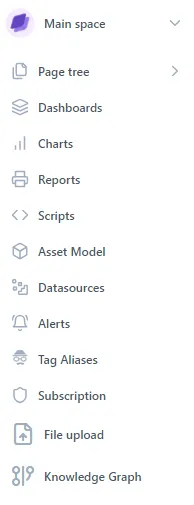
This displays the standard Neo4j browser interface. For more details on using this browser, see Neo4j Browser Manual
1.5 What is an Asset Model?
Section titled “1.5 What is an Asset Model?”An asset model is a data model that represents asset components such as wells, pipelines, manifolds, separator, pumps or compressors. It also holds important facts about those assets such as key properties and relationships with references to these assets in other systems, such as timeseries data, blueprints, documents, work orders and risk assessments. Assets can also be related to each other such as when wells are connected to a manifold or valves connected to vessels.
Asset models have been implemented using various technologies throughout time: relational databases, object-oriented databases and more recently graph databases.
Asset models are important in the digitalisation of processes because they enable the creation of generic visuals (also called templated displays), the scale up of automated workflows across many assets of the same type and allow the calculation of roll-up summaries.
In Ingenuity 7, Asset Models are created using Knowledge Graphs.
Users can browse the Knowledge Graph directly (See the chapter on Knowledge Graphs) but can also navigate the model using the Asset Model Browser, which is explained in this chapter.
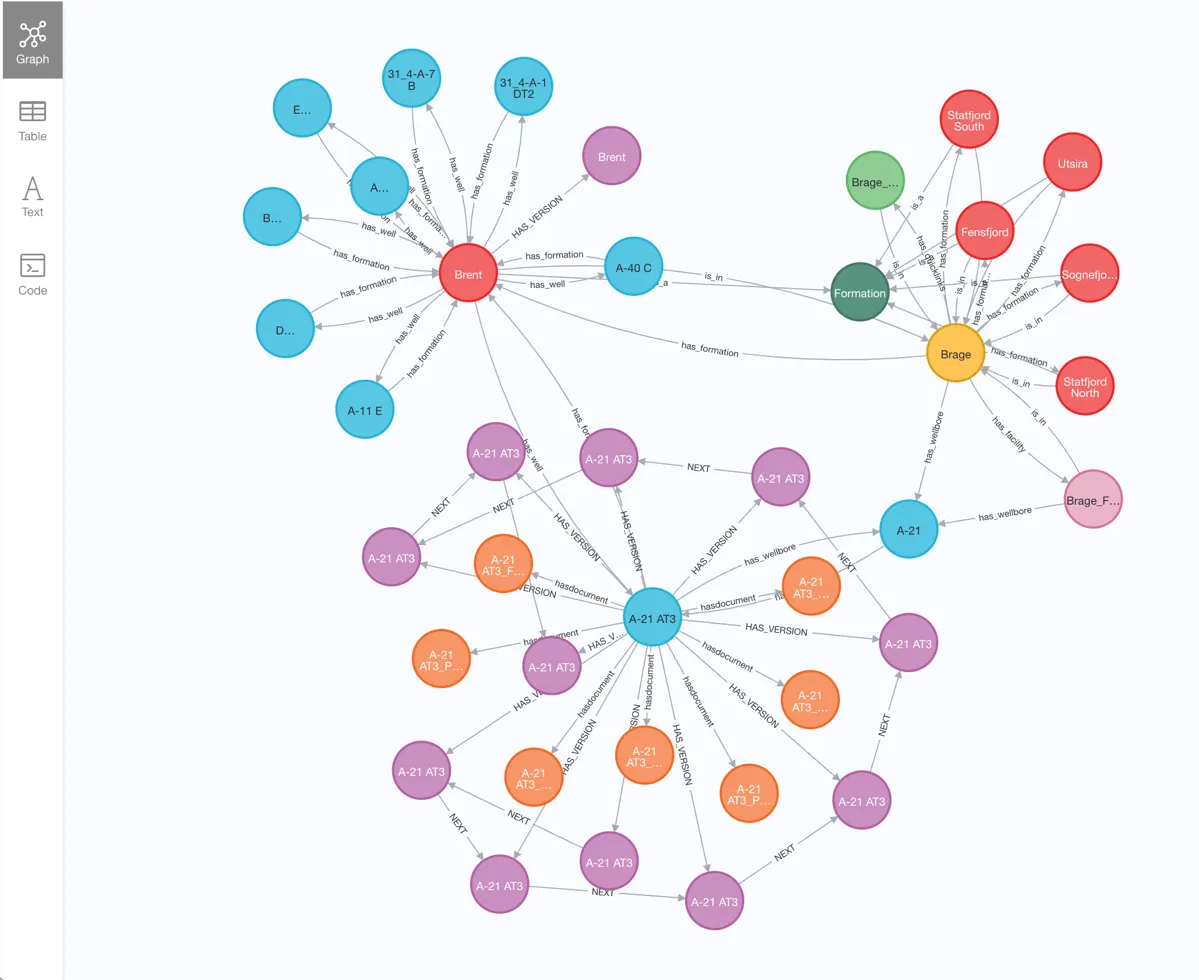
A Knowledge Graph of an Oil Field as seen using the Neo4j browser
2 Asset Model Browser
Section titled “2 Asset Model Browser”2.1 Accessing the Asset Model Browser
Section titled “2.1 Accessing the Asset Model Browser”To access the Asset Model Browser in Ingenuity, simply click on ”Asset Mode’ icon in the left-hand menu.
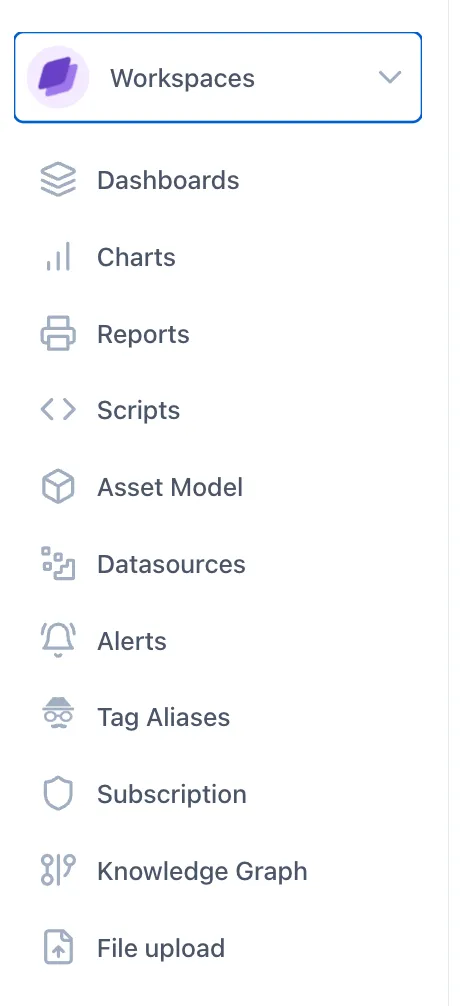
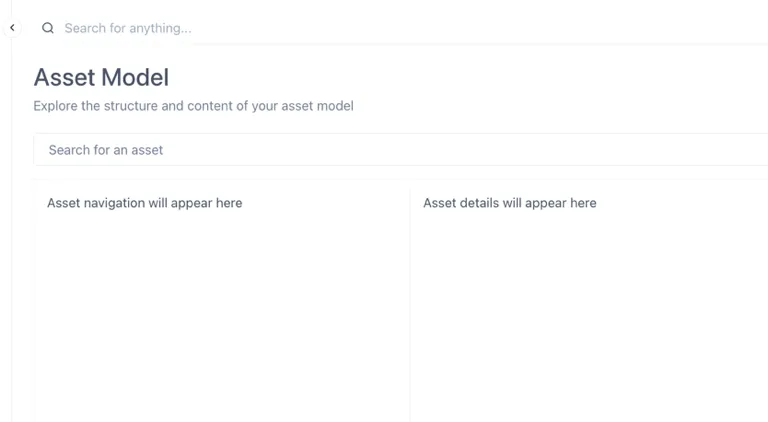
This calls up a blank Asset Model page (or the last Asset browsed, if used before).
2.2 Browsing Assets (Objects)
Section titled “2.2 Browsing Assets (Objects)”To start, type the name of any asset in your asset model. As you type, the system will search the asset model and return all Assets matching (case insensitive) the text entered, e.g. in this example, we typed “well”
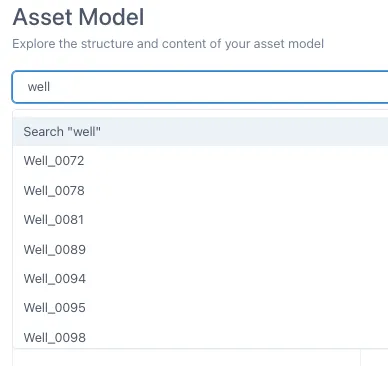
Selecting an Asset from the list of search results will set this Asset as the top object in the left-hand panel. Selecting this Asset will display object properties (attributes) on the right side as shown in the diagram below.
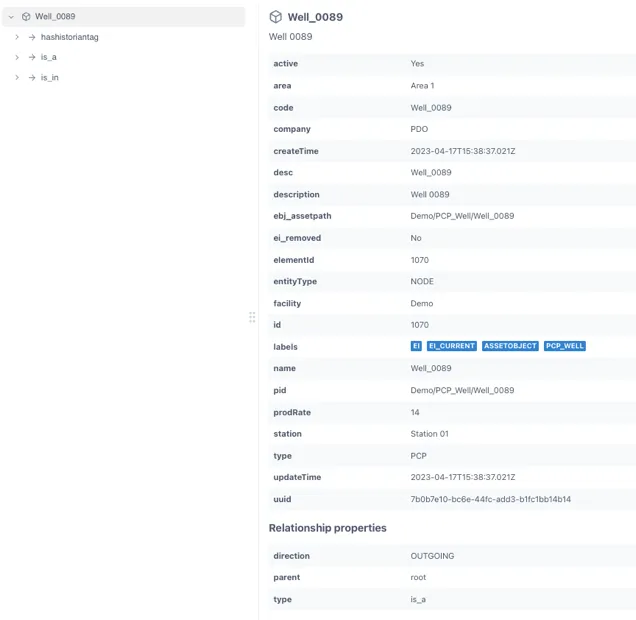
Object labels are shown as tags with a blue background.
TIP
Labels are used to identify an objects “type” or “class”. An object will usually have multiple labels that reflect the class hierarchy.
For example, a Boeing 747 could be classified as an “Aeroplane”, an “Airliner”, a “PassengerJet” or a “Boeing747”.
2.3 Related objects
Section titled “2.3 Related objects”Clicking the ”>” icon to the left of the Asset will expand the list of relationship to and from this object.
Clicking the ”>” icon to the left of the relationship will expand the list of Objects connected by this relationship type.
For example, by expanding the “hashistoriantag” relationship, we see all the historian tag objects. Clicking on one of these HistorianTag objects, we can see it’s properties and a sparkline of the data in the right hand panel, as shown below.
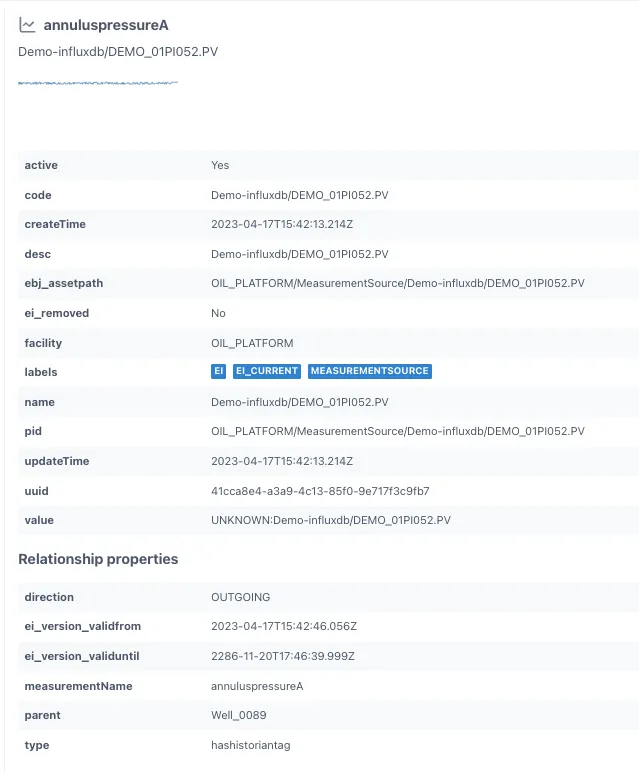
Note the attribute “measurementName”: This is the generic name of the measurement which can be used to generalise references for the purpose of workflows and visualisation artifacts.
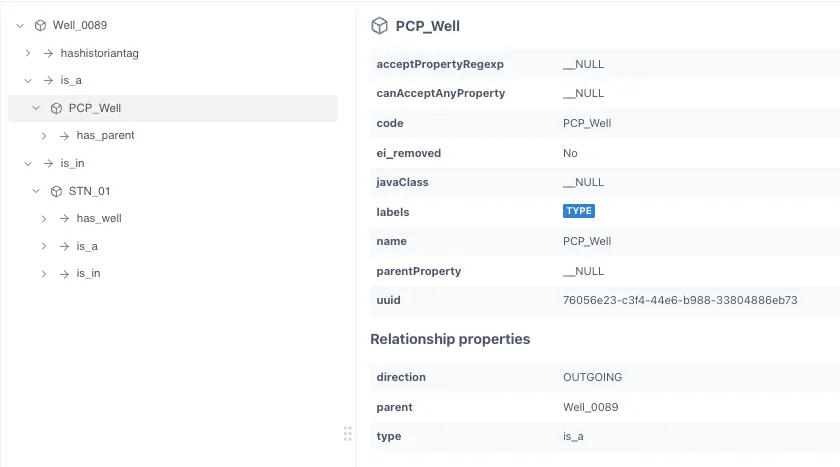
Other entries, such as “is_a” and “is_in” show relationships of the current object with others in the model. This is example, the well “is a” PCP Well and “is in” STN_01 (Station 01).
For more information, please contact us at info@eigen.co or book a demo on our website at www.eigen.co